Quick Summary
To reduce technology downtime, combine proactive monitoring, timely patching, tested backups, redundancy for critical systems, a written disaster recovery plan, and staff training. Most outages are preventable, and the cost of downtime grows the longer it lasts, so fast response matters too.
- Automated alerts catch failing drives and failed backups before they stop work.
- Apply critical security patches within 24 to 72 hours after testing on one or two machines.
- Follow the 3-2-1 backup approach and restore a sample quarterly to confirm it works.
- Protect internet, power, and phone service with a secondary line, UPS units, and call forwarding.
- Run a disaster recovery tabletop exercise once or twice a year and update the plan after incidents.
Table of Contents
- What Business Technology Downtime Really Costs
- Step 1: Set Up Proactive Monitoring and Automated Alerts
- Step 2: Keep Patches, Hardware and Software Current
- Step 3: Protect Data With Tested Backups, Including Cloud Options
- Step 4: Build Redundancy and Failover Into Critical Systems
- Step 5: Write and Test an IT Disaster Recovery Plan
- Step 6: Reduce Human Error Through Training and Access Controls
- Step 7: Decide Whether Managed IT Support Makes Sense for Your Business
- Frequently Asked Questions
What Business Technology Downtime Really Costs
Last Updated: November 4, 2026
Every hour your systems are down is an hour your team cannot work, your customers cannot buy, and your phones may go unanswered.
At Marchese Computer Products, Inc., we have helped local businesses keep their technology running since 1981.
Downtime costs usually fall into a few categories:
- Lost productivity: Staff are paid while they wait for systems to come back online.
- Lost revenue: Point-of-sale, e-commerce, and phone systems stop generating sales.
- Recovery expense: Emergency technician time and replacement hardware add up quickly.
- Data and reputation damage: Lost files and frustrated customers can take far longer to fix than the outage itself.
A simple way to estimate your own cost is to multiply the hourly wages of affected staff by the hours of outage, then add lost sales for that same period.
Two points matter more than the math. First, downtime cost grows the longer it lasts, so fast response matters. Second, most of the cost is preventable.
Step 1: Set Up Proactive Monitoring and Automated Alerts
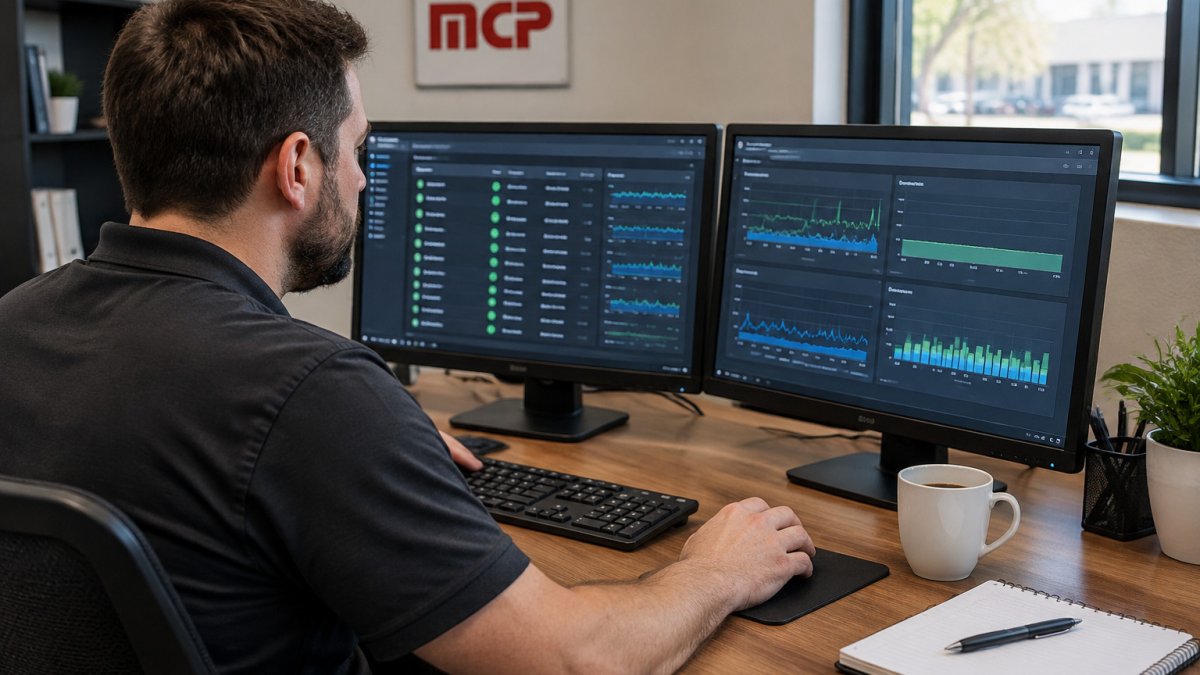
Monitoring is the fastest way to catch problems before they stop work. Instead of learning about a failing server when an employee calls, automated tools watch disk space, memory, network connections, and device health around the clock.
Many small businesses rely on reactive support, meaning someone fixes things only after they break. Proactive monitoring flips that model.
To set this up:
- Inventory every server, workstation, firewall, and network switch.
- Choose which metrics matter most, such as disk health, CPU load, and internet uptime.
- Set alert thresholds that flag problems early, not just total failures.
- Assign a named person or provider to respond to each alert.
- Review alert logs monthly to remove noise and spot patterns.
Watch out: Alerts that nobody reads are worse than no alerts at all. Make sure someone owns the response.
Step 2: Keep Patches, Hardware and Software Current
Outdated software causes many outages, and it also opens doors for attackers. Operating system updates, firmware patches, and application upgrades fix known bugs and security holes.
A workable patch cadence separates updates into tiers rather than treating them all the same:
- Critical security patches: Apply within 24 to 72 hours of release, after a quick test on one or two non-critical machines. These close actively exploited holes.
- Feature and minor updates: Apply monthly on a fixed maintenance window, such as the first Saturday of the month, so staff are not surprised mid-week.
- Firmware and BIOS updates: Apply quarterly unless a vendor flags a critical fix. Firmware is riskier to rush because a failed flash can brick a device.
- End-of-life software: Track support end dates and plan migrations at least six months ahead. Running unsupported software is not a patch problem; it is a replacement problem.
Hardware lifecycle matters just as much.
A practical routine looks like this:
- Maintain a software inventory with version numbers and vendor support end dates.
- Classify each application by business criticality so you know what to patch first.
- Test major updates on one or two computers before rolling them out to everyone.
- Schedule patches outside peak business hours and notify staff in advance.
- Verify after each cycle that patches actually installed, failed installs are common and silent.
- Review the asset register quarterly and flag any device within 90 days of warranty expiry.
Watch out: Aggressive patching without testing can itself cause downtime.
Patch management works best when it is scheduled and owned.
The article lays out a tiered patch cadence and typical hardware lifespans that can be scanned at a glance.
| Update or asset type | Timing | Note |
|---|---|---|
| Critical security patches | Within 24 to 72 hours | Test on one or two non-critical machines first |
| Feature and minor updates | Monthly | Use a fixed maintenance window |
| Firmware and BIOS updates | Quarterly | Unless a vendor flags a critical fix |
| Software end-of-life | Plan migration 6+ months ahead | Track vendor support end dates |
| Workstations and laptops | About 4 to 5 years | Reliability drops as devices age |
| Servers | About 5 to 7 years | Plan replacement before failures |
| Network gear | About 5 to 7 years | Depends on vendor support window |
Step 3: Protect Data With Tested Backups, Including Cloud Options
A backup you have never restored is only a hope. Reliable backups are the difference between a one-day disruption and a loss that may never be fully recovered. Testing backups regularly helps prevent data loss when ransomware or hardware failure strikes, and cloud backup practices can strengthen that protection.
Follow the common 3-2-1 approach: keep three copies of important data, on two different types of media, with one copy stored off-site. Cloud backup is often the simplest way to meet the off-site requirement. Pricing depends on how much data you store, how often backups run, and how long you keep older versions, so ask for a quote tailored to your environment rather than relying on a generic number.
Testing is the step most businesses skip. Once a quarter, restore a sample file and, if possible, a full system image to confirm the process works. Note how long the restore takes, because that time is part of your real downtime.
Step 4: Build Redundancy and Failover Into Critical Systems
Redundancy means having a backup for the parts of your business that cannot afford to stop. Failover is the switch that moves work to the backup automatically when the primary system fails.
You do not need enterprise-grade duplication for everything. Focus on the systems that stop revenue or customer contact when they fail:
- Internet connection: A secondary line, such as a cellular failover device, keeps you online during provider outages.
- Power: Uninterruptible power supplies protect servers and network gear from brief outages and surges.
- Phone service: Call forwarding to a mobile number keeps customers from reaching a dead line.
- Critical data: Keep a current copy that staff can access if the main server goes down.
Ask which systems would cost the most per hour to lose, then protect those first. Partial redundancy on the right systems often delivers far more value than full duplication everywhere.
Step 5: Write and Test an IT Disaster Recovery Plan
A disaster recovery plan turns panic into a checklist. It answers who does what, in what order, and how fast systems must return. Without one, even a short outage can drag on because people are guessing.
A solid plan includes: a cloud computing readiness assessment can help you judge which systems are ready to fail over to the cloud.
- A list of critical systems ranked by business impact.
- A recovery time goal, which is how long each system can be down.
- A recovery point goal, which is how much data loss is acceptable, such as one day or one hour.
- Contact details for staff, vendors, and your IT provider.
- Step-by-step recovery instructions for each critical system.
- Documented steps for communicating with customers during an outage.
Plans fail when they sit in a drawer. Run a tabletop exercise once or twice a year, where your team walks through a simulated outage and notes gaps.
Step 6: Reduce Human Error Through Training and Access Controls
Many outages start with a person, not a machine. A mistyped command, a rushed click on a suspicious link, or an accidental deletion can stop work just as effectively as a hardware failure. Human error mitigation is one of the most overlooked ways to reduce downtime.
Training and controls work together. Training teaches staff what to watch for, and access controls limit the damage when someone makes a mistake. Consider these measures:
- Train staff to recognize phishing emails and report them quickly.
- Give employees only the access they need for their jobs.
- Require strong, unique passwords and multi-factor authentication for email and remote access.
- Use change controls so major system edits are reviewed before they go live.
- Keep a short written guide for common tasks to reduce guesswork.
A common mistake is assuming a single annual training session is enough. Short, repeated refreshers work better, especially after new threats appear in the news.
Step 7: Decide Whether Managed IT Support Makes Sense for Your Business
By now you can see that reducing downtime involves monitoring, patching, backups, redundancy, planning, and training.
Start with a simple comparison. Add up what you currently spend on reactive repairs, emergency labor, replacement hardware, and staff idle time during outages over the past 12 months.
A managed IT plan typically bundles these tasks into an ongoing relationship with a provider who monitors your systems, applies updates, tests backups, and responds when something fails. Learn more in the benefits of proactive managed IT support.
Evaluate any managed provider against these criteria:
- Response time commitments: What is the guaranteed response time for a critical outage, and is it in writing?
- Monitoring scope: Which devices and applications are covered, and which are excluded?
- Backup and recovery terms: Who owns the backup data, how often is restore tested, and what is the recovery time commitment?
- Patch and lifecycle management: Is patching included, or billed separately?
- Reporting: Do you get a monthly report showing tickets, uptime, and patch compliance?
- Exit terms: What happens to your data and documentation if you leave?
Managed support may be a good fit if:
- You have no in-house IT staff, or your one IT person is stretched thin.
- Outages regularly cost you more than an ongoing support plan would.
- You run cloud applications, legacy systems, or a phone system that all need coordination.
- You want a clear recovery plan and someone accountable for it.
It may be less useful if you have a dedicated IT team with the capacity to handle these tasks, or if your systems are simple enough that a part-time contractor covers them.
Watch out: The cheapest per-user quote is rarely the lowest total cost.
Frequently Asked Questions
What is the average cost of IT downtime for small businesses?
The cost depends on revenue per hour, payroll idled during an outage, and recovery effort. A practical method is to add up the hourly wages of staff who cannot work, the revenue lost while sales or service stops, and any overtime or vendor fees needed to restore systems. Multiply that hourly figure by the hours the outage lasted, then add one-time costs like data recovery. Working through this with your own numbers is more useful than any national average, which varies widely by industry.
How can proactive maintenance prevent business technology downtime?
Proactive maintenance catches problems before they stop work. Regular patching closes known software vulnerabilities, hardware health checks flag failing drives and power supplies early, and automated alerts notify someone when disk space, memory or network performance crosses a threshold. Scheduling these tasks on a fixed calendar, and logging each one, turns maintenance from a reaction to outages into a routine that prevents most of them.
How do managed IT services help in reducing technology downtime?
Managed IT providers monitor your systems around the clock, apply patches on a schedule, manage backups and test restores, and respond to alerts with remote troubleshooting. For small businesses without an in-house technician, this coverage means problems are noticed in minutes rather than when an employee calls in frustrated. When evaluating a provider, ask how alerts are handled after hours and how quickly a technician responds to a critical outage.
What role does disaster recovery play in minimizing downtime?
Disaster recovery determines how quickly you can resume operations after a serious failure such as ransomware, fire or a failed server. Two targets guide the plan: the recovery time objective, which is how long systems can be down, and the recovery point objective, which is how much recent data you can afford to lose. A plan that defines both, and is tested with an actual restore, shortens outages dramatically compared with improvising during a crisis.
Ready to stop reacting to outages? Schedule a call with Marchese Computer Products, Inc. to talk through your current setup and where downtime is costing you the most.